

TTSFree AI is an offline desktop text-to-speech app for Windows and Mac. It supports PDF files along with many other formats, so you can take a report, ebook, research paper, or any text-based PDF and convert it into clear, natural audio without uploading anything to the cloud. The whole process stays on your computer, and there are no character limits or daily caps.
Before you start
Make sure you have already installed TTSFree AI and enabled at least one TTS engine (QWen3-TTS, Kokoro, or the native system voices). If you have not done this yet, open the Model Manager, download the engine you want, and enable it. Supported output formats are MP3, WAV, and M4A/M4B. You can change the default format in Settings if you prefer a different one.
Step 1: Open a project
TTSFree AI works with projects. A project is simply a folder on your computer that holds the files you want to convert.
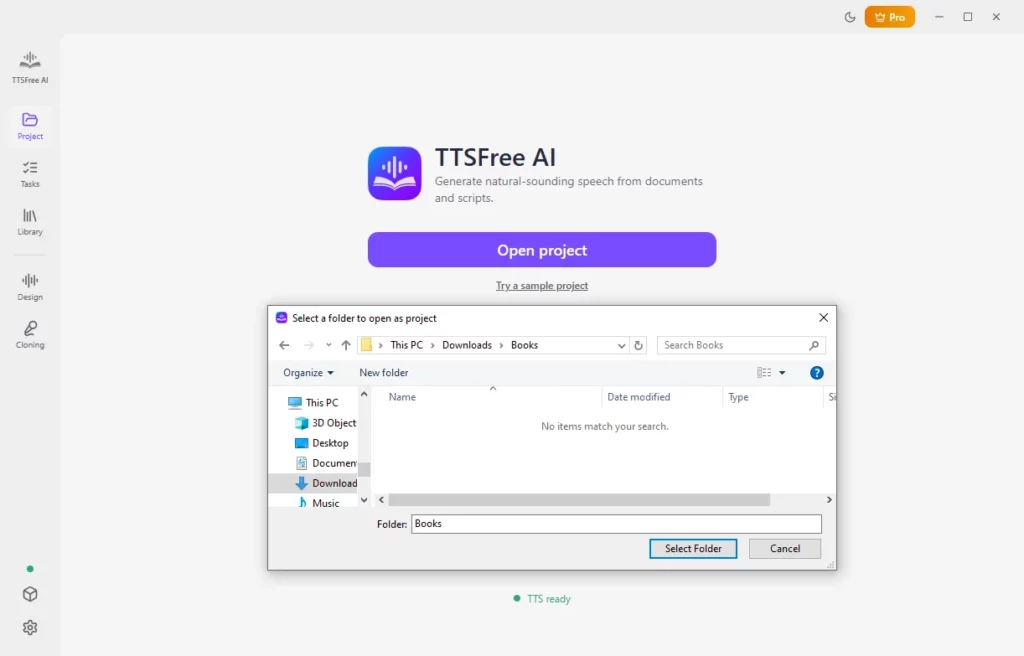
- Click the Open project button.
- Select the folder where your PDF is stored (or create a new folder for it).
- Click Select Folder.
The app will automatically detect supported files in that folder, including PDFs.
Step 2: Import the PDF (if it is not already in the project)
If the PDF is not yet in the project folder, you can add it manually.
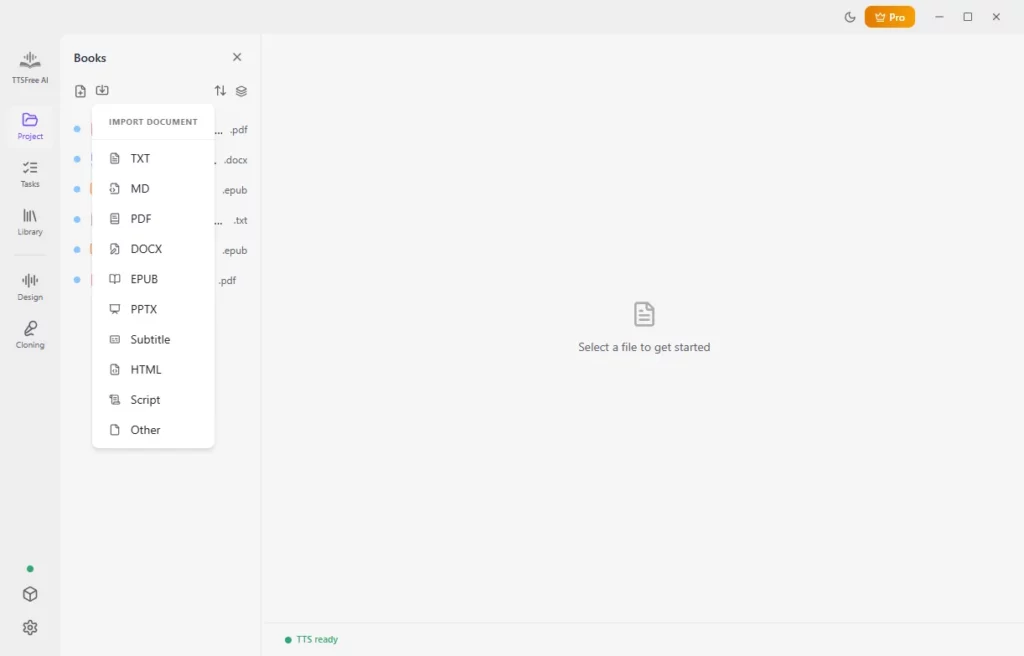
- Click the Import document icon.
- Choose PDF as the file type.
- Select your PDF file and click Open.
The document now appears in the project panel and is ready for conversion.
Step 3: Choose a natural AI voice
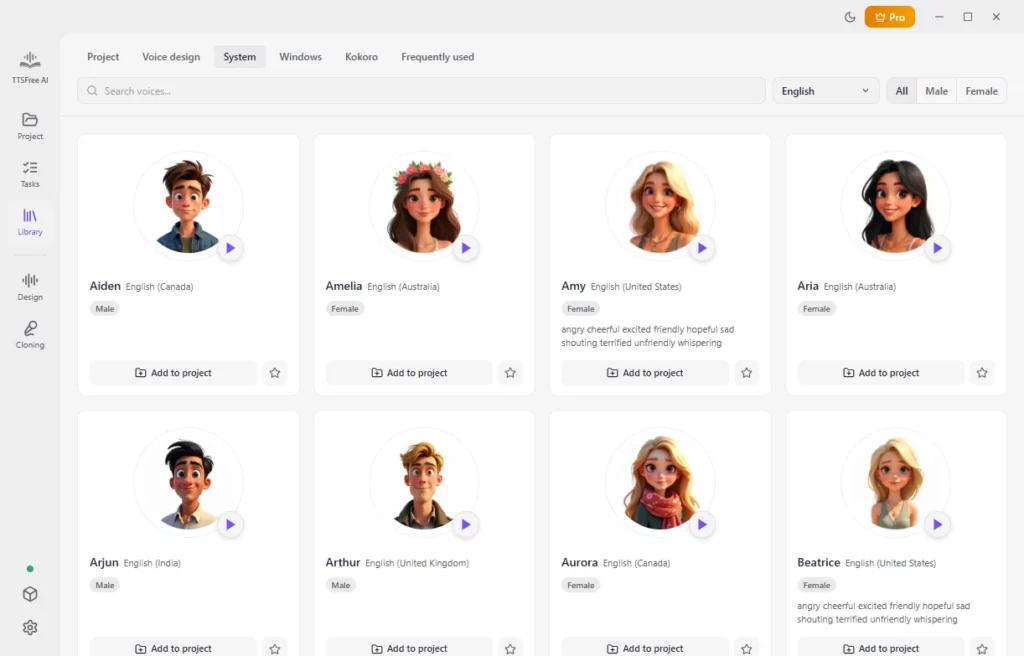
When you open the PDF, the app assigns a default voice. You can change it to any available voice from the engines you have enabled.
- Select a paragraph (or leave the whole document selected).
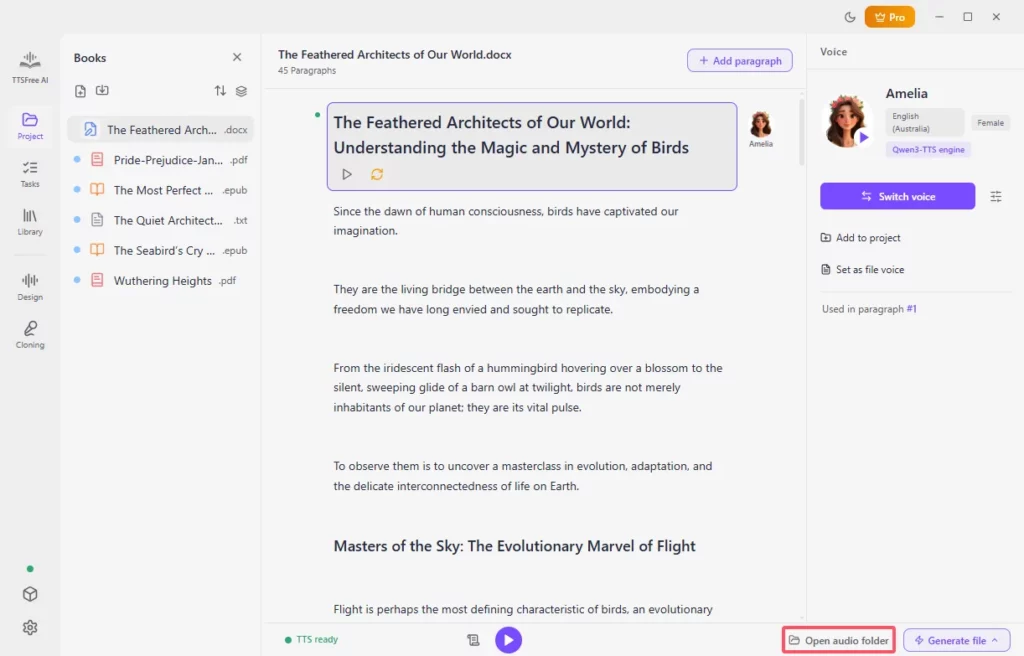
- Click the voice avatar or the Switch voice button in the right panel.
- Preview voices by clicking the play button, then pick the one you like.
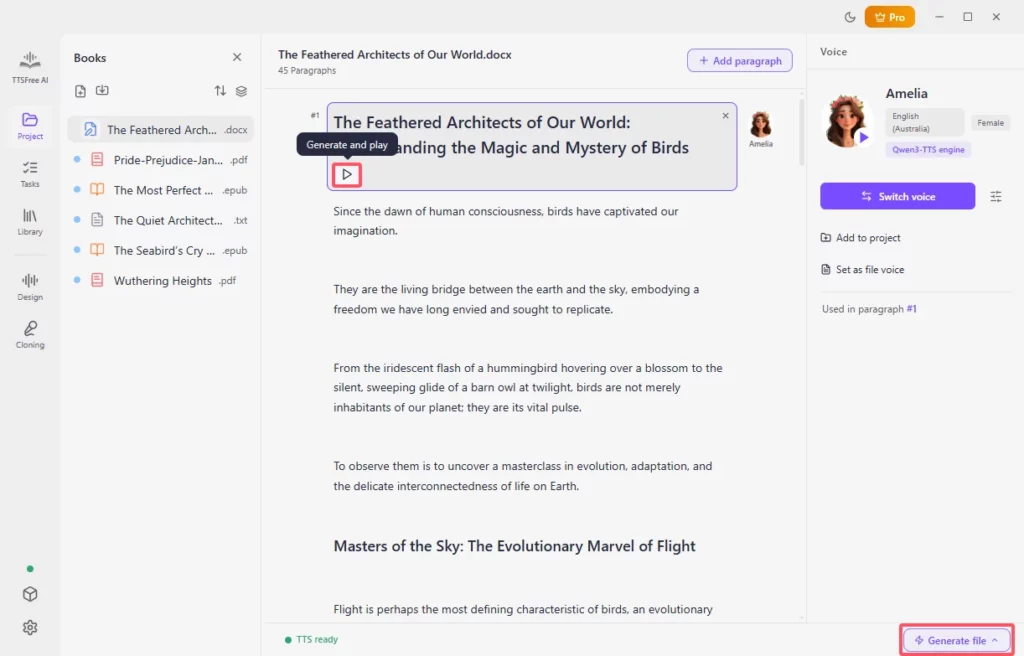
- To apply the same voice to the entire PDF, click Set as file voice.
You can also adjust speed, pitch, and volume through the Voice options controls if needed.
Step 4: Convert the PDF to audio
Once the voice is set, you can generate the audio.
- To convert a single paragraph and hear it right away, click Generate and play under that paragraph.
- To convert the whole document at once, click Generate file and then Generate all.
Generation happens locally on your computer. The first time you use a particular voice, the app may need to download related resources, so that first run can take a little longer.
Step 5: Find and use the audio files
You do not need to download the audio manually. By default, TTSFree AI saves everything in the project folder you selected.
Click the Open audio folder button to jump straight to the files. You will usually find:
- Individual audio files for each paragraph
- A merged file of the full document (when you use Generate file)
Tips for better results with PDFs
- Text-based PDFs give the best results. TTSFree AI can also handle scanned PDFs with its built-in OCR, though the quality is usually not as high as with selectable text.
- For long documents, you can generate paragraph by paragraph and only process the sections you need.
- If you have several PDFs to convert, assign voices to each one and use the Tasks feature to process them in bulk.
- Your original PDF is never modified. All editing and generation stay inside the app.
Wrapping Up
Converting a PDF to natural AI audio with TTSFree AI only takes a few steps: open a project, import the file, choose a voice, and generate. Everything runs offline on your own computer, so your documents stay private and you can process files of any length. We hope this guide helps you turn PDFs into clear, listen-ready audio quickly and easily.