TTSFree AI for Windows
Free Windows Text to Speech: 200+ Voices That Sound Real
TTSFree AI runs entirely on your Windows PC or laptop, so your text never leaves your computer, and you don’t need an internet connection to generate audio. Convert as much text as you want with zero character limits.

Ella

Ryan

Grace

Victor

Ethan

Chloe

Sophie

Hannah

Ivy

Marcus

Manon

Olivia

Peter

Dipa

Riccardo

David
Voice Features
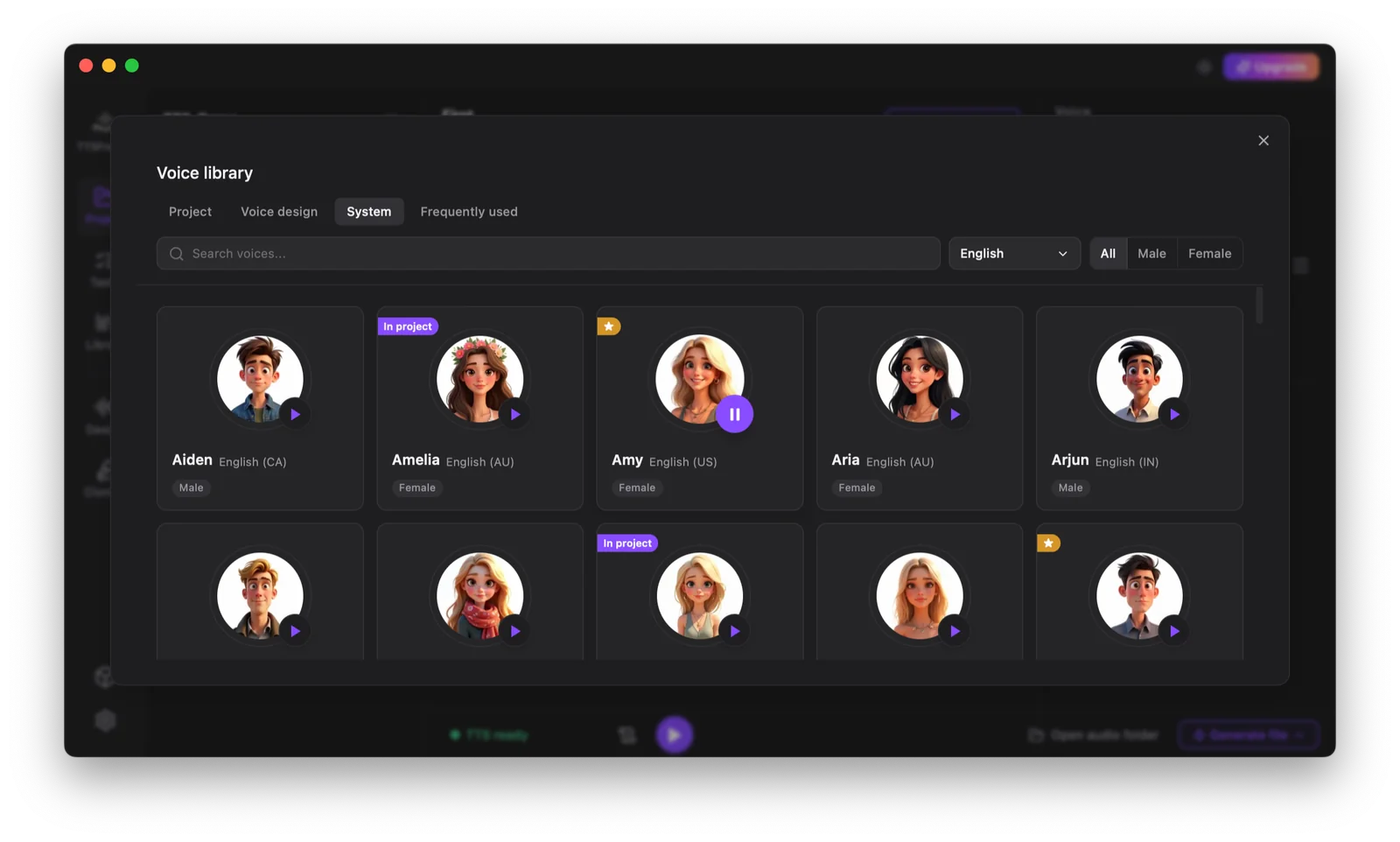
Find Your Perfect AI TTS Voice
From ready to use narrators to fully custom AI voices, our text to speech software gives you complete control. Mix built-in libraries, local engines, cloning, and voice design to match any project or personal preference.
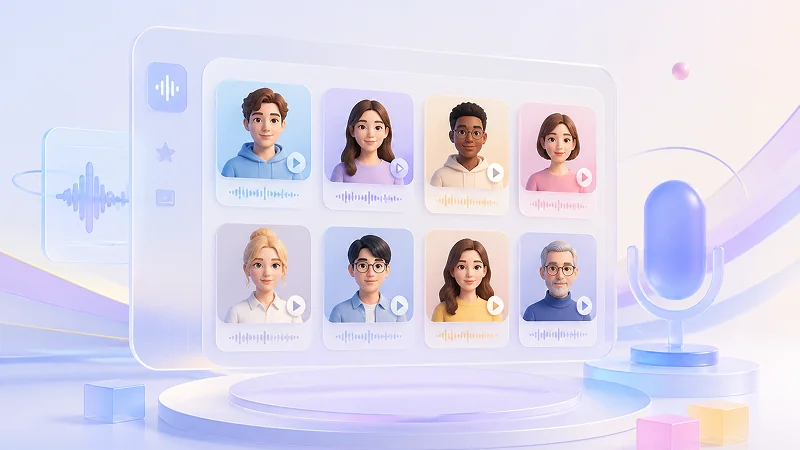
Built-in Voices
Start with our curated library of natural-sounding voices optimized for long-form listening on Windows. No setup needed, just pick a voice and begin converting text to speech instantly.
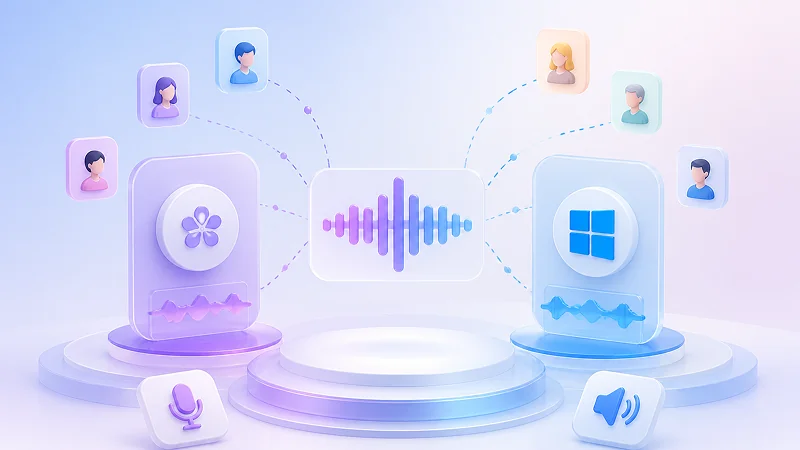
Kokoro & Windows AI Voices
Access a wide range of built-in AI voices from both the Kokoro model and your native Windows TTS engines. These local voice libraries are ready to use immediately.
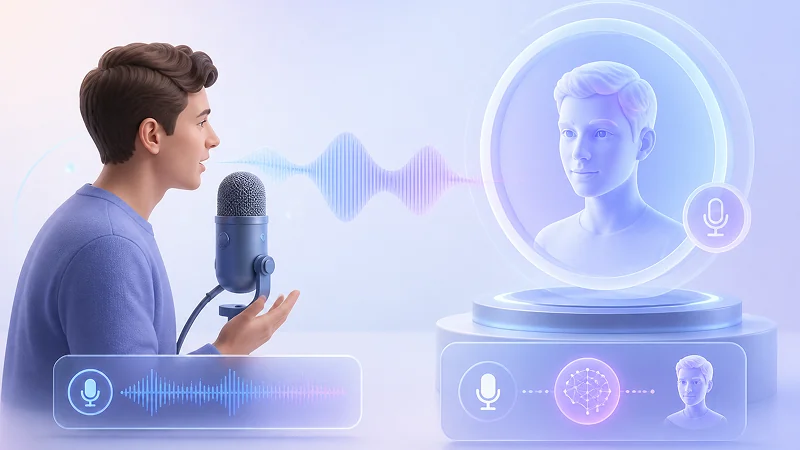
Voice Cloning
Clone any voice instantly by reading a short random prompt directly into your microphone. The software captures your vocal characteristics in real time and generates a personalized AI voice without requiring any pre-recorded audio uploads.
Voice Design
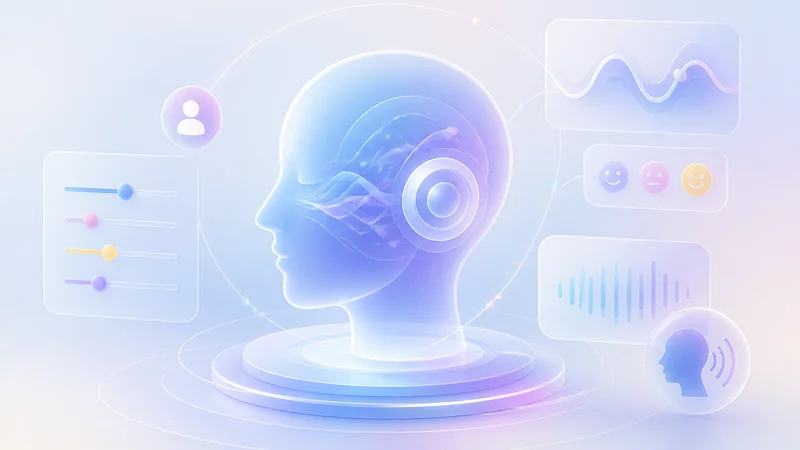
Generate entirely new AI voices or refine existing ones using natural language prompts. Simply describe the desired emotion, style, tone, and other vocal characteristics in text, and the system will instantly synthesize or adjust the voice to match your description without any manual parameter tuning or audio uploads.
Supported Formats
Convert a Wide Range of Files to Speech
Beyond manual copy-pasting, upload your existing documents or subtitle files for instant text-to-speech conversion.
Plain Text
TXT


EPUB
DOCX

PPTX

HTML
MD
Subtitles
Script
Supported Languages
Cover Multiple Common Languages
We support all widely used languages through three offline engines, so you can always find a matching voice without going online.
Qwen3-TTS 0.6B/1.7B
Chinese, English, Japanese, Korean, German, French, Russian, Portuguese, Spanish, Italian
Kokoro-82M
English, Chinese, Japanese, French, Spanish, Hindi, Italian, Portuguese
Windows Built-in TTS
Any language pack installed on your system
Offline Advantages
The Benefits of Offline TTS
Running TTS locally changes what you can actually do with it. Here are the practical upsides that make offline worth it.
Your Documents Stay Private
Your text never leaves your computer. There is no server storage, no third-party logging, and no risk of leaks. You keep full control over who sees your content.
No Queue, Just Your Hardware Speed
There is no waiting line and no shared server load. Generation speed depends entirely on your own GPU or CPU, so you get consistent performance whether it is 3 am or peak hours. You will never sit idle while other users finish their jobs first.
No Character Limits
Cloud services often cap monthly usage or charge extra for long texts. Offline text to speech software has no such restrictions. You can convert entire books, research papers, or scripts without worrying about hitting a ceiling or paying overage fees.
Batch Processing Made Easy
You can queue hundreds of files and let them run overnight without supervision. There is no API rate limiting, no timeout errors, and no need to babysit the process. Just set up your batch and come back to finished audio later.
TTS Models
Mix TTS Engines to Match Every Task
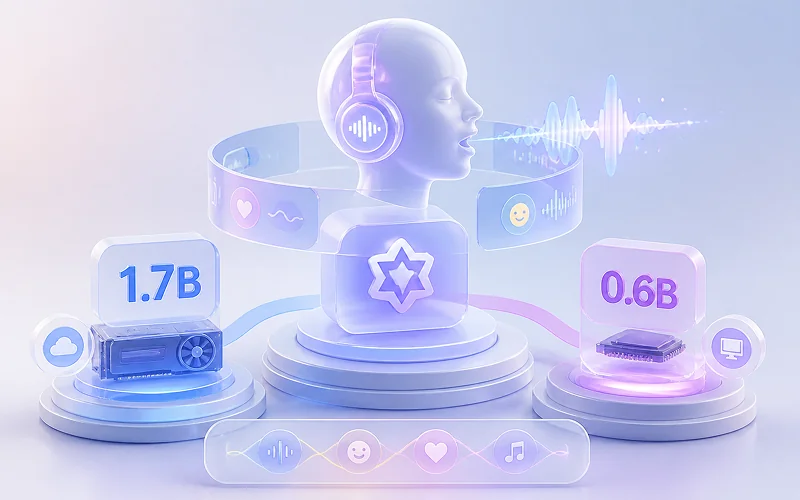
Select the perfect voice engine for every project segment without switching tools. We combine three distinct local TTS engines into one workflow, letting you match quality, speed, and hardware resources to each specific task.
Qwen3-TTS
Deliver studio-grade narration or rapid batch output from a single model family. The 1.7B variant provides rich emotion and natural prosody for audiobooks and podcasts on VRAM-sufficient GPUs, while the 0.6B variant generates high-quality speech instantly on CPUs or entry-level GPUs for prototyping and offline use.
Kokoro-82M
Achieve ultra-fast inference with minimal resource footprint. Includes optional G2P dictionaries to fix mispronunciations of technical terms, names, and multilingual text for precise output.
Windows Built-in TTS
Access zero-config system voices for instant previews, accessibility testing, and fallback generation. Requires no external dependencies and works immediately out of the box on Windows 10/11.
Multi-Engine Workflow
Assign different engines to separate paragraphs, characters, or sections within a single document. Seamlessly blend Qwen3’s expressiveness, Kokoro’s precision, and Windows system voices in one export without manual file merging.
Audio Formats
Convert Text to MP3, WAV & M4B Audiobooks
You just pick the format that fits what you’re working on and get back to creating. This text to speech app for Windows supports three standard formats so you always have the right file for the job.
MP3: Universal Compatibility & Smallest File Size
MP3 is the default choice for most text to speech work because it just works everywhere. The files are small enough to share over email or embed on a website without slowing anything down, and they still sound clear and natural. Every phone, browser, and smart speaker plays them natively without any extra setup.
WAV: Lossless Studio Master Quality
WAV gives you uncompressed studio-quality audio with zero loss. Every breath, pause, and tonal shift comes through exactly as generated, which makes it the ideal source file if you plan to edit, mix, or master the audio later. It drops into your project folder ready to open in Audition, Pro Tools, or DaVinci Resolve without any transcoding.
M4A / M4B: Audiobook-Ready with Chapter Support
M4B is the dedicated audiobook format used by Apple Books, Audible, and every major listening platform. What sets it apart is automatic chapter marking based on your document headings or subtitle timestamps, plus built-in support for bookmarks and resume playback. Listeners can jump between chapters and pick up exactly where they left off, which is essential for novels, textbooks, or any long-form content.
Specifications
Tech Specs
Fully local, no cloud required. Optimized for CPUs and NVIDIA GPUs on Windows 10/11.
OS
Windows 10 / 11
64-bit only
RAM
8 GB minimum
16 GB+ recommended for Qwen3-1.7B
GPU
NVIDIA with 6 GB+ VRAM
Unlocks full acceleration for 1.7B; all engines run offline on CPU-only setups
Step-by-Step Guide
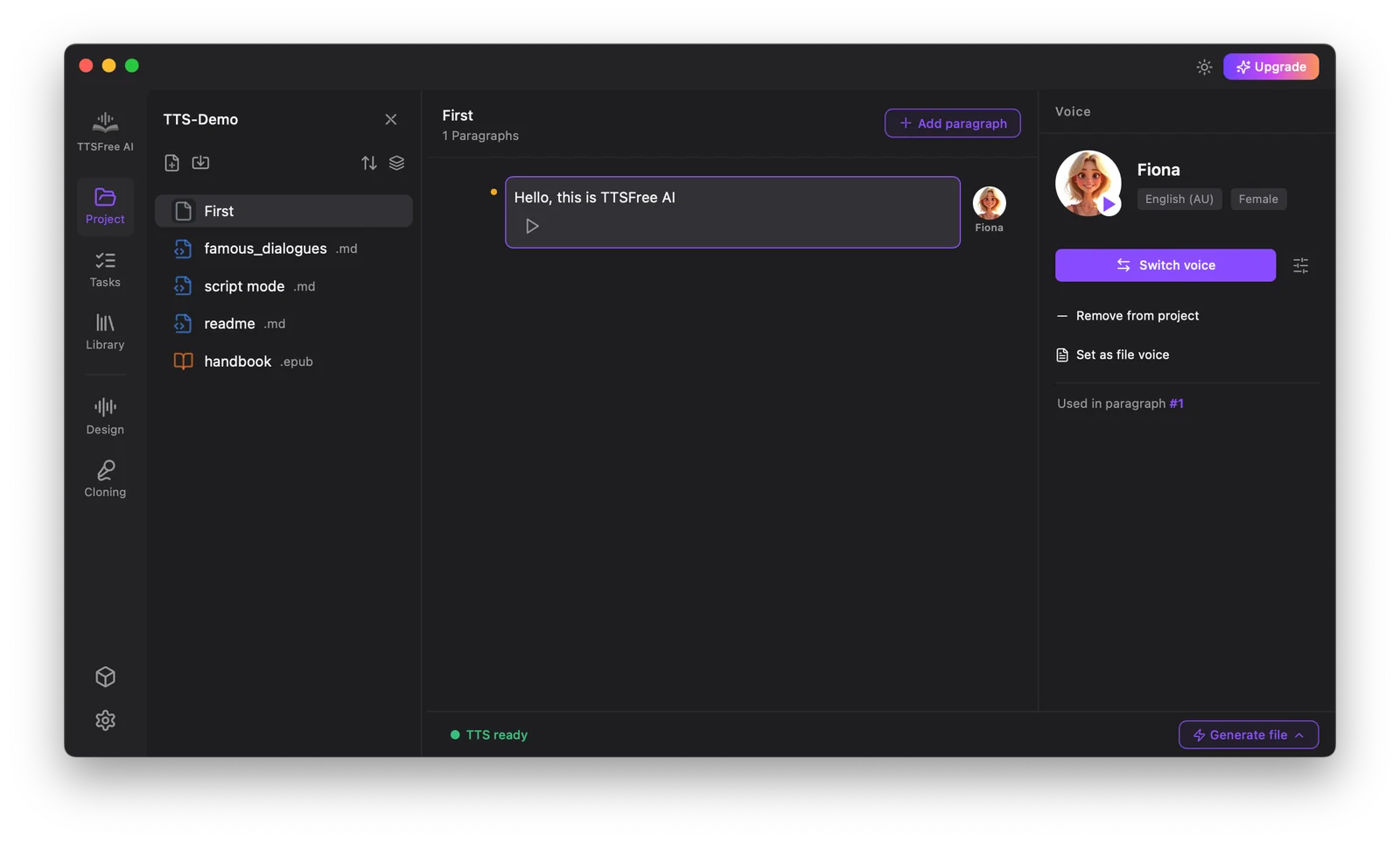
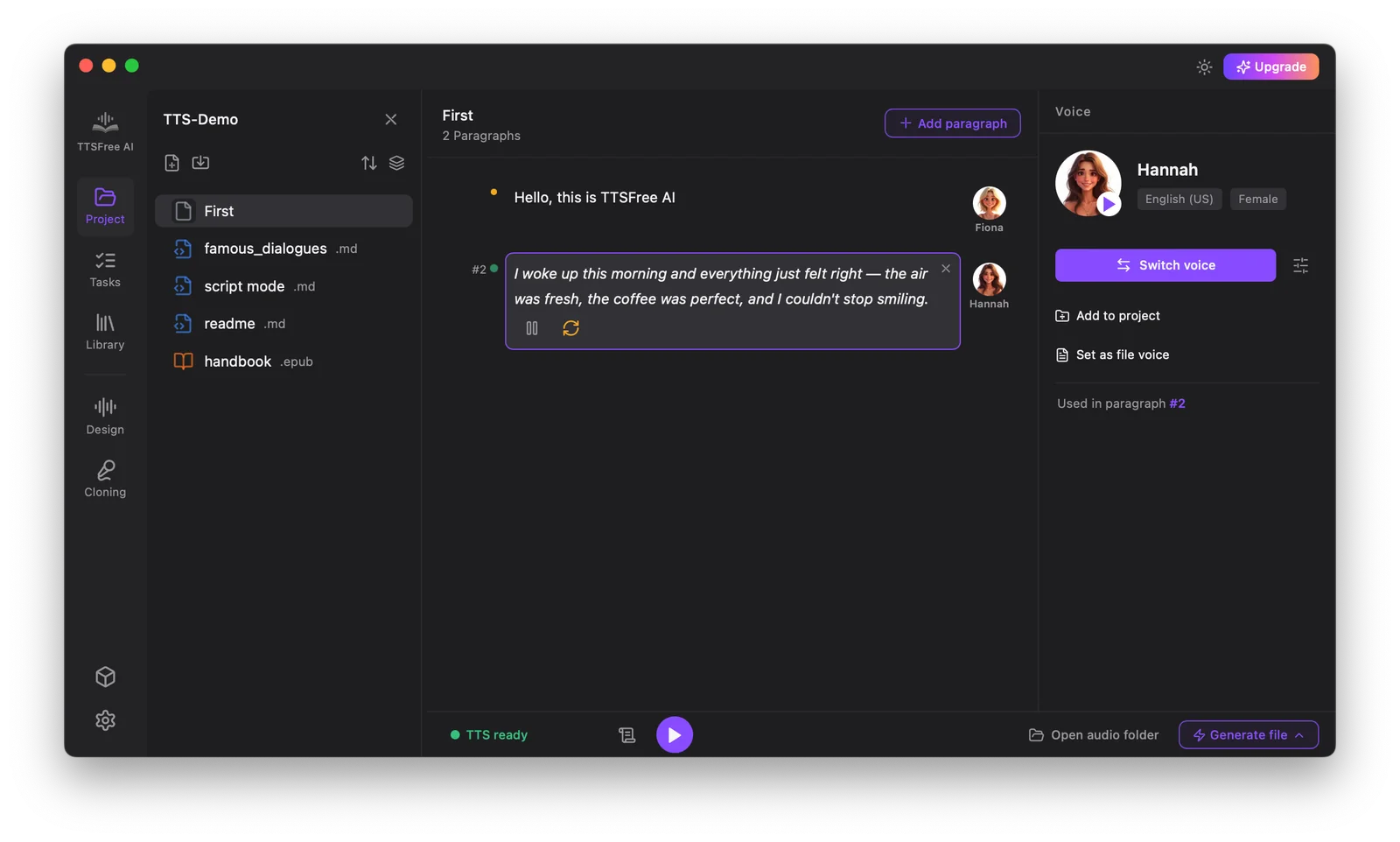
How to Convert Text to Speech on Windows
Follow the steps below to turn any document into natural-sounding audio in seconds.
FAQ
Frequently Asked Questions
Got questions? Here are the answers to what most people ask before getting started.
Is TTSFree AI free to use?
It offers a 7-day free trial with full access to all premium AI engines. After the trial ends, the app doesn’t lock you out. You can keep using it for free forever by switching to the built-in Windows TTS models.
Do I need to enter a credit card for the trial?
No. The 7-day trial is completely free and requires no payment info. Just install the app and start generating audio.
Do the Windows voices work offline?
Yes, completely. Windows voices are installed directly on your PC. Once a language pack is downloaded, Windows and TTSFree AI can generate speech from text without an active internet connection.