

As an all-in-one text-to-speech app, TTSFree AI gives you a wide range of built-in AI voices and also includes an advanced voice cloning feature. With it, you can create a digital version of your own voice and use it for any text-to-speech work.
You do not need a long recording. Just read one or two short sentences plus the verification code shown on the screen, and the app will generate a voice clone that sounds like you. Even better, you only need to record in one language. Once the clone is ready, you can use it in all 10 languages supported by QWen3-TTS. The AI extracts your unique voice characteristics, so the same clone works across every language the engine supports. This makes the feature especially convenient for multilingual projects.
How to clone your voice
Before you start, make sure your PC or Mac has a working microphone (built-in or external). For the best results, record in a quiet room with minimal background noise. Speak clearly and at a natural pace.
Once you are ready, follow these steps:
- Open the Cloning section in the app.
- Review the instructions on the screen and click I agree & start verification.
- Press Start recording, speak the displayed text clearly, and press Stop recording when you are done.
- After the verification succeeds, give the voice a name and avatar, then click Start cloning.
- When the process finishes, the new voice appears in your voice library and is ready for use.
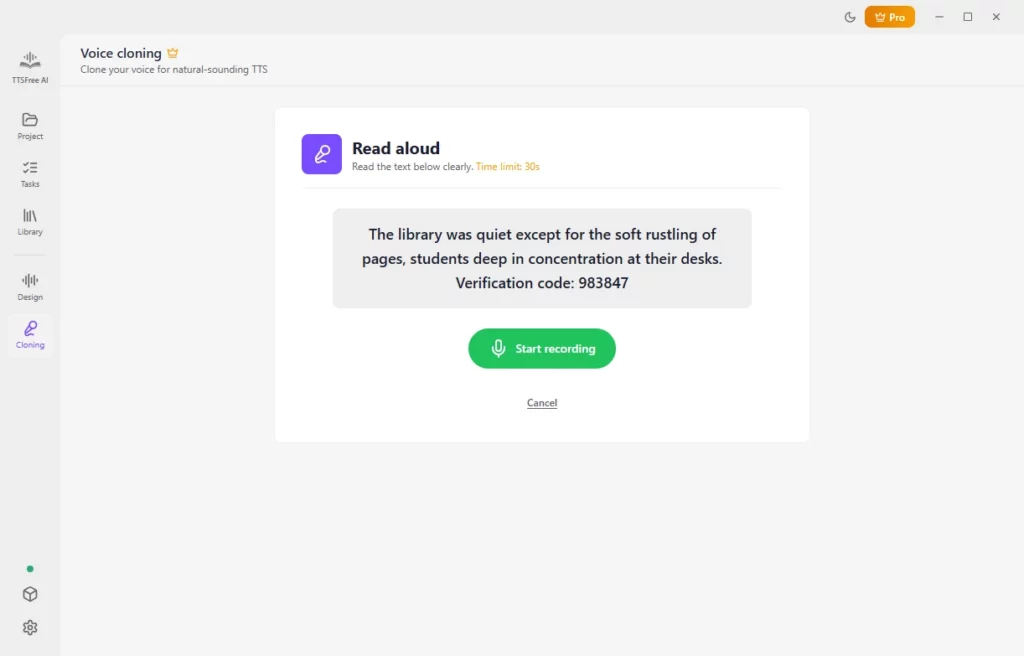
Note: The Cloning feature requires the QWen3-TTS engine. Make sure you have downloaded and enabled it in the Model Manager before you begin.
How to use your cloned AI voice for TTS
Once your voice is cloned, you can apply it to any project in just a few clicks.
- Open your project in TTSFree AI and select the file you want to convert.
- Select the paragraph (or paragraphs) where you want to use your cloned voice, then click the voice avatar or the Switch voice button.
- In the voice library, switch to the Voice design tab and select your cloned voice.
- If you want to apply the same voice to the entire document, click Set as file voice.
- Click the Generate and play button under a paragraph, or use Generate file to convert the whole document with your own voice.
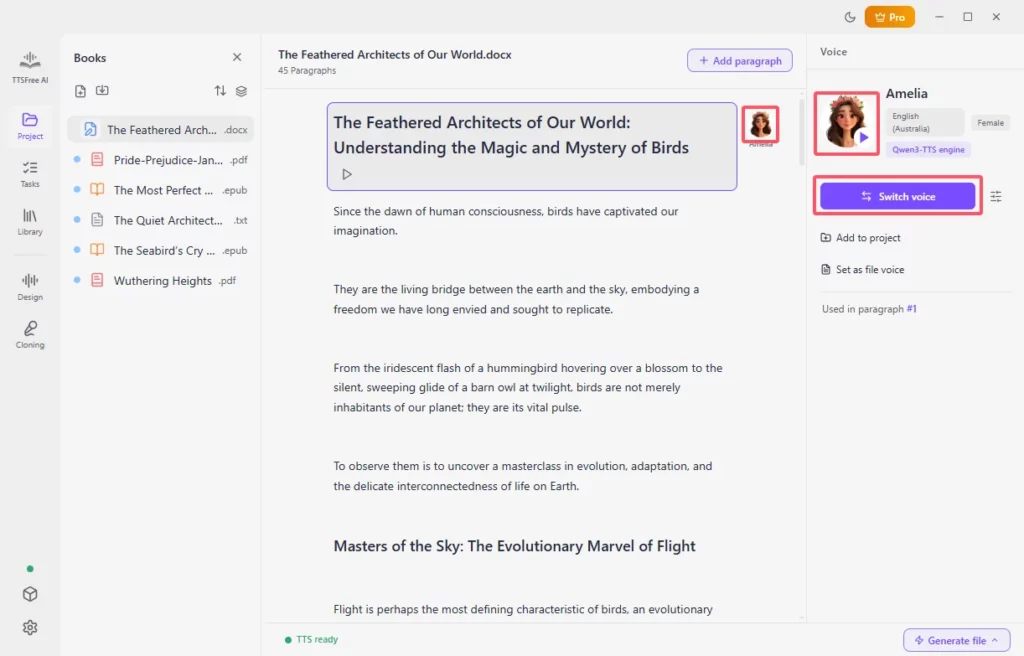
You can also adjust speed, pitch, and volume for the cloned voice using the Voice options settings, just as you would with any other voice.
Wrapping Up
Cloning your voice with TTSFree AI is straightforward and only takes a couple of minutes. Once the clone is ready, you can use it across projects and languages without needing to record again. We hope this guide helps you get started quickly and makes your text-to-speech work feel more personal. If you have any questions or run into issues, feel free to reach out. Enjoy creating with your own voice.