

If you have an EPUB ebook and want to listen to it instead of reading on a screen, TTSFree AI makes the conversion straightforward. The app works offline on Windows and Mac, supports EPUB files directly, and lets you generate clear, natural-sounding audio with no character limits or cloud uploads. Everything stays on your computer.
Before you start
Make sure TTSFree AI is installed and at least one TTS engine is enabled (QWen3-TTS, Kokoro, or the native system voices). You can manage engines in the Model Manager.
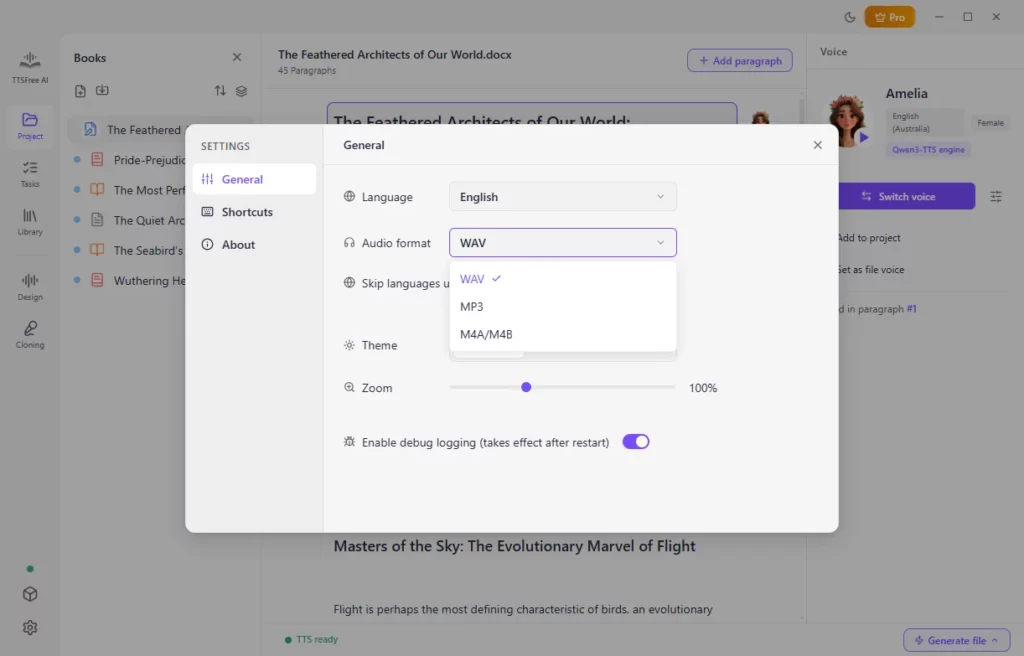
Step 1: Set MP3 as the audio format
The app may use another format, so set MP3 first if that is what you want.
- Click the Settings icon.
- Go to the Audio format option.
- Open the dropdown and select MP3.
The setting will apply to future generations.
Step 2: Open a project and import the EPUB
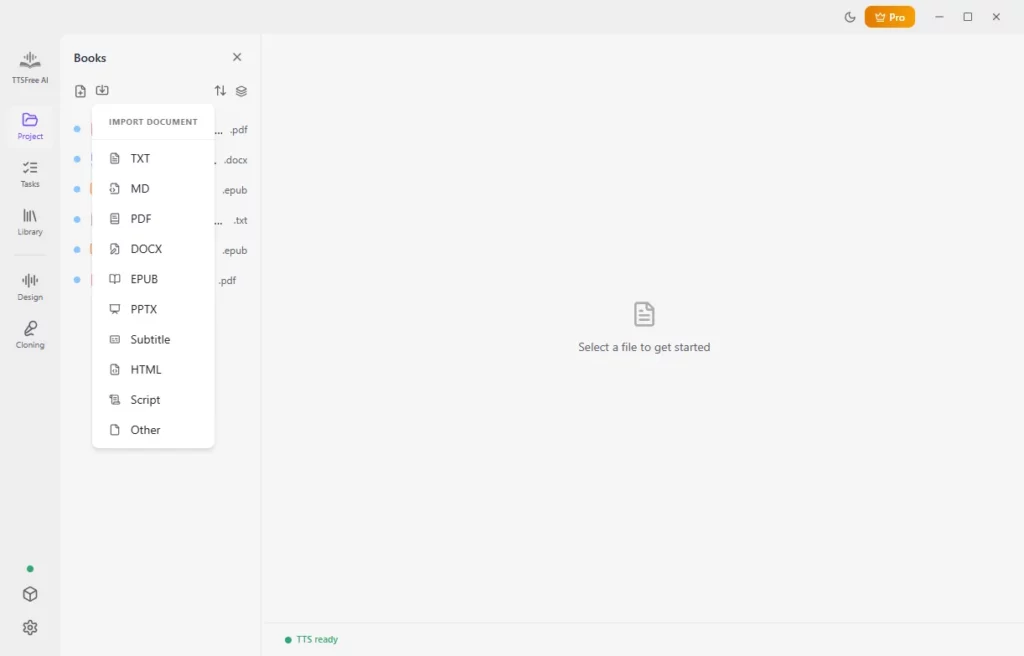
TTSFree AI organizes work in projects. A project is simply a folder on your computer.
- Click Open project and select (or create) the folder where you want to keep the files.
- If the EPUB is not already in that folder, click the Import document icon, choose the EPUB format, select your file, and click Open.
The EPUB now appears in the project panel and is ready to convert.
Step 3: Choose an AI voice
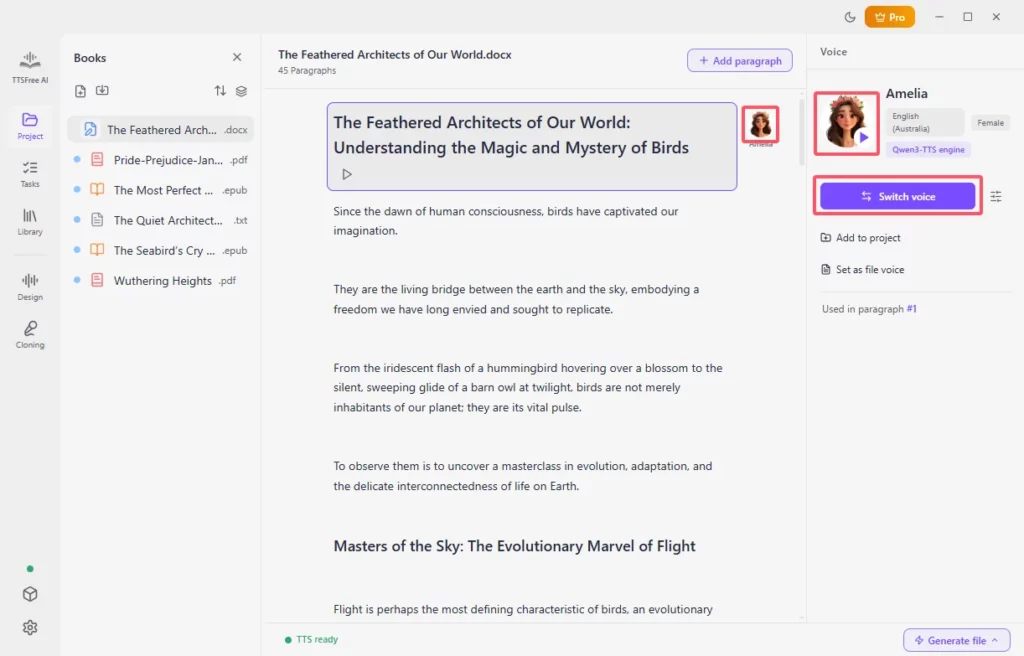
When you open the file, the app assigns a default voice. You can change it to any available voice from the engines you have enabled.
- Select a paragraph or leave the whole document selected.
- Click the voice avatar or the Switch voice button.
- Preview voices and pick the one you prefer.
- To apply the same voice to the entire EPUB, click Set as file voice.
You can also adjust speed, pitch, and volume in the Voice options if needed.
Step 4: Convert the EPUB to audio
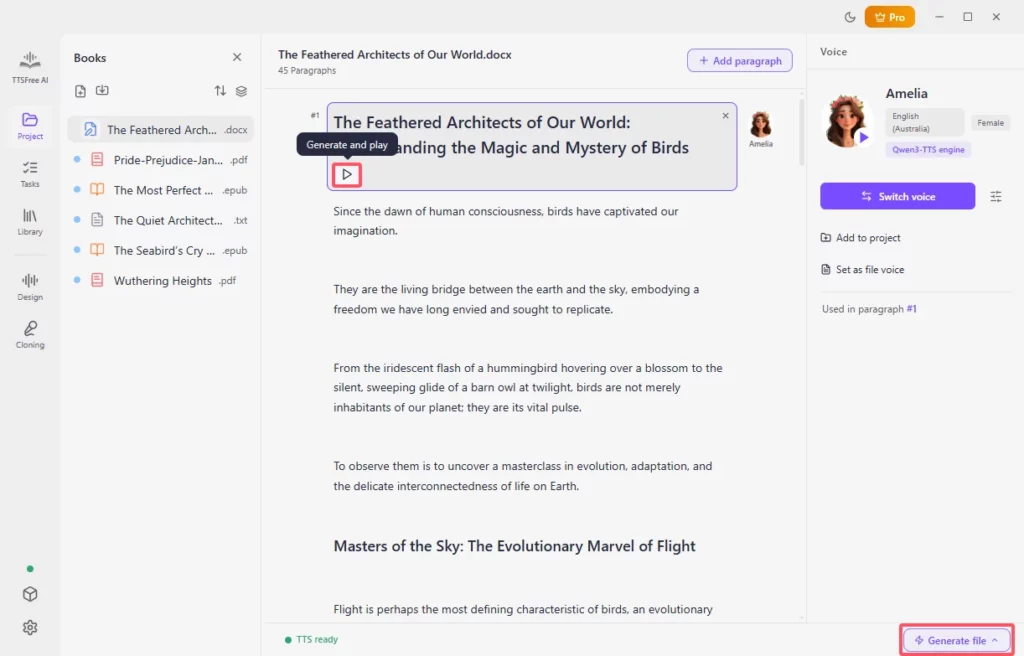
Once the voice is set, start the conversion.
- Click Generate and play under a paragraph to convert and hear a single section right away.
- Click Generate file and then Generate all to convert the whole document at once.
Generation runs locally. The first time you use a particular voice, the app may need to download related resources, so that first run can take a little longer.
Step 5: Find the MP3 files
You do not need to download the audio manually. TTSFree AI saves the files in the project folder by default.
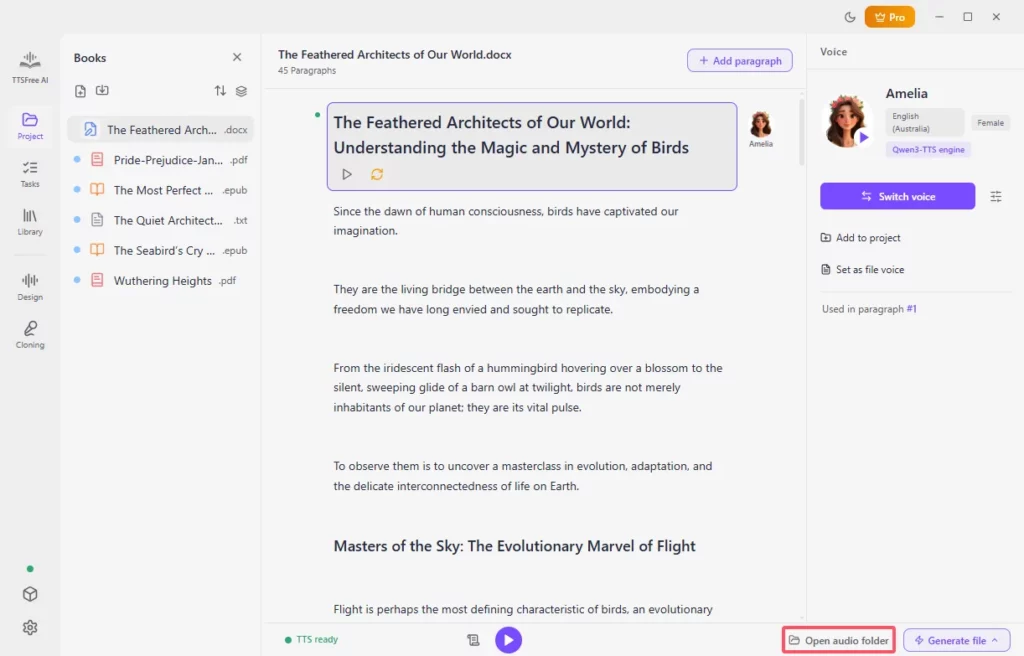
Click the Open audio folder button to access them directly. You will usually see individual paragraph files plus a merged MP3 of the full document (when you use Generate file).
Tips for better results
- Clean, well-structured EPUBs convert more smoothly.
- For long ebooks, you can generate chapter by chapter or only the sections you need.
- If you have several EPUBs, assign voices first and use the Tasks feature to convert them in bulk.
- Your original EPUB is never changed. All processing stays inside the app.
Wrapping Up
Converting an EPUB to MP3 with TTSFree AI takes just a few steps: set the format, open the project, import the file, choose a voice, and generate. The result is natural AI audio you can listen to anywhere, created entirely on your own computer. We hope this guide helps you turn ebooks into listen-ready MP3 files quickly and easily.