

Sometimes the default voice settings do not quite match what you need. You may want the speech a little faster, a bit lower in pitch, or quieter overall. TTSFree AI lets you adjust speed, pitch, and volume directly inside the app so the final audio sounds exactly the way you prefer.
How to adjust speed, pitch, and volume
- Open your project and select any paragraph that uses the voice you want to change.
- Click the Voice options icon next to the Switch voice button.
- Move the sliders for speed, pitch, and volume until the settings feel right, then click Save changes.
- If you want the same adjustments applied to every paragraph in the document, click Set as file voice and choose Voice + Options.
- Generate the speech (use Generate and play for a single paragraph or Generate file for the whole document) and listen to the result.
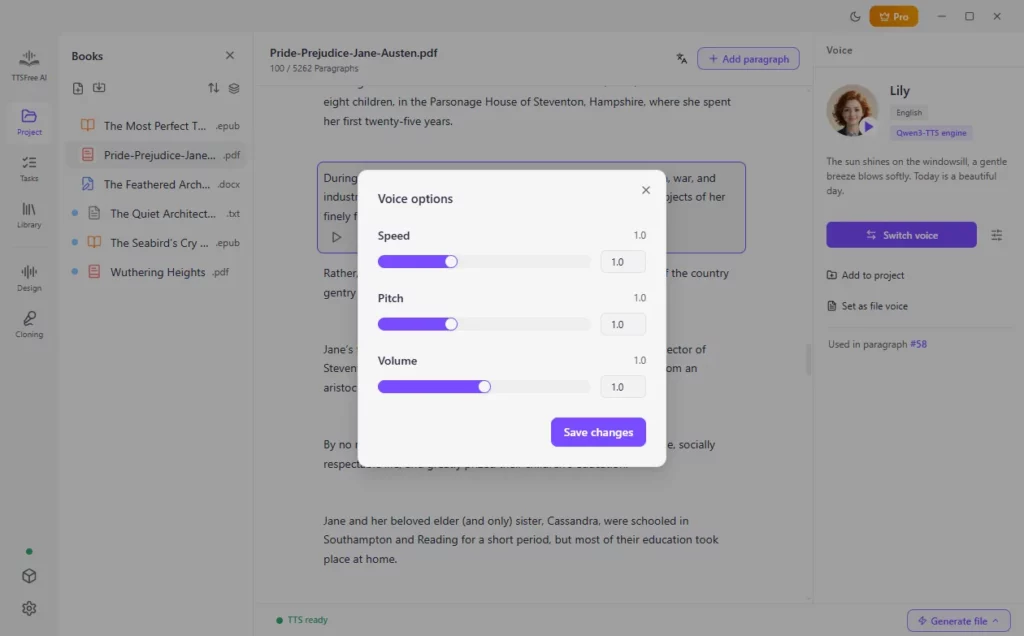
You can repeat these steps anytime you switch to a different voice or want to try a new combination of settings.
If the adjusted speed, pitch, and volume still do not feel right, you can go a step further and design a new AI voice or clone your own. The Voice Design feature lets you shape the voice’s emotion, speaking pace, gender, tone, accent, and overall style through simple text prompts. You can create a brand-new voice from scratch or fine-tune an existing one until it matches exactly what you have in mind. Once saved, the custom voice is ready to use in any project.
Wrapping Up
Adjusting speed, pitch, and volume only takes a few clicks and gives you more control over how the final audio sounds. Whether you need a faster pace for short clips or a calmer tone for longer listening, the Voice options panel makes it easy to get the result you want. And if those basic controls are not enough, Voice Design and voice cloning open up even more possibilities. We hope this guide helps you fine-tune your AI voices quickly and with confidence.